Team and invitations
Your company has one Tierline account, shared by its team. Everyone sees the same states and categories, and each person has their own briefing and watchlist.
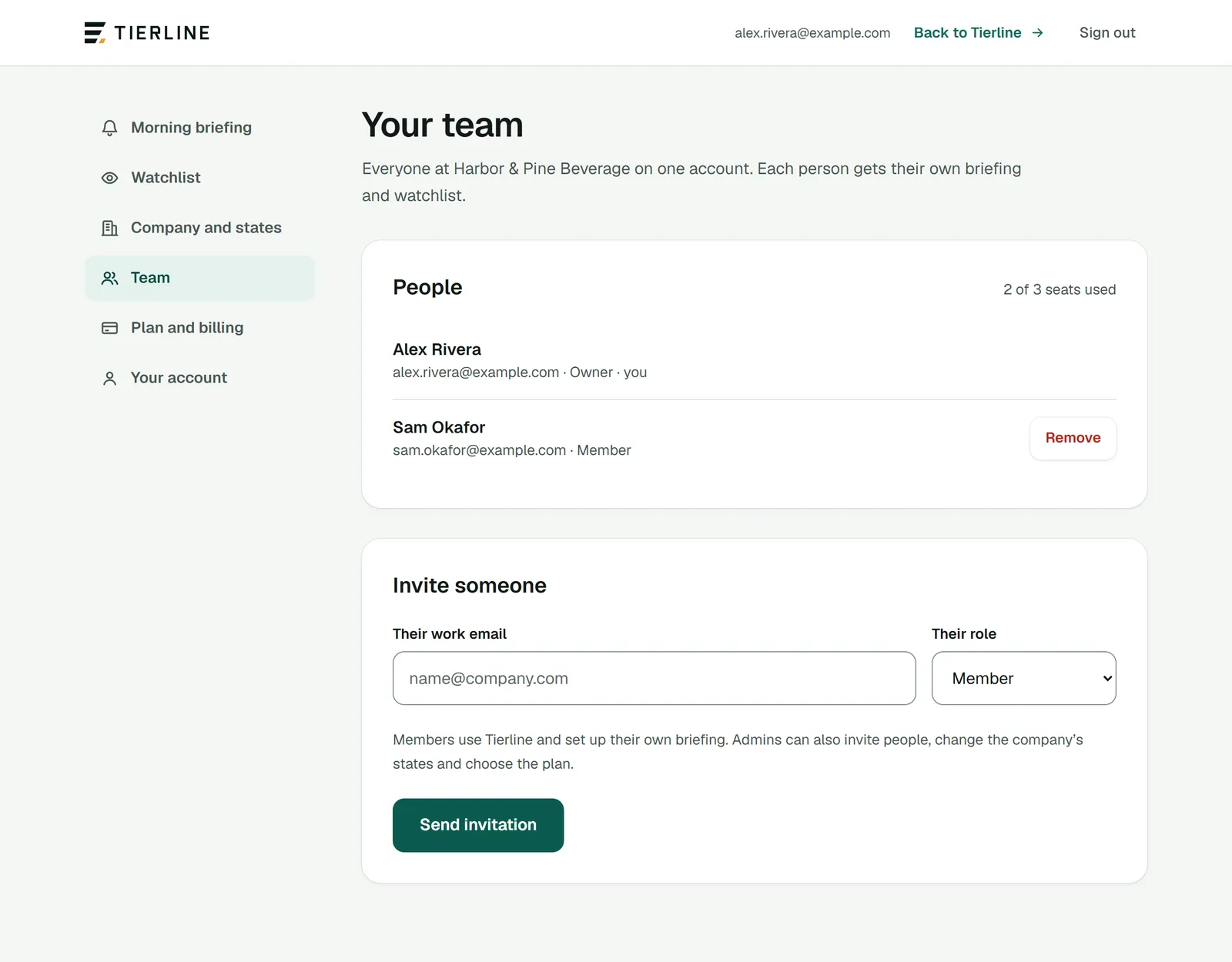
How to read it
- 1.
Seats used, of the seats your plan allows. The free trial has 3.
- 2.
Each person: name, email and role. Someone invited who hasn’t joined yet says so.
- 3.
Send again sends an invitation again. Remove takes someone off the team; Take back cancels an invitation.
- 4.
Invite someone by their work email.
- 5.
Their role: Member or Admin.
What to do here
Invite a colleague
An owner or admin enters a work email, chooses the role and presses Send invitation. Tierline emails them; they choose a password and set up their own briefing.
Choose who manages
Members use Tierline and set up their own briefing. Admins can also invite people, change the company’s states and choose the plan, like the owner.
Good to know
- When every seat is used, Get more seats leads to Plan and billing.
- Only an owner or admin can invite or remove people; everyone else sees who’s on the team.