Getting started
Tierline reads every label TTB approves and the brand registrations of the states we read, matches each brand to the company that files its labels and the distributors that carry it, and shows you what’s new before your first call.
Sign-ups are closed for now: you join when we make your account, or when your company’s owner or admin invites you. The first time you sign in, a few welcome steps set Tierline up for you.
Sign in
Sign in is at the top of the site (on a phone, in its menu). Use the email your account or your invitation went to.
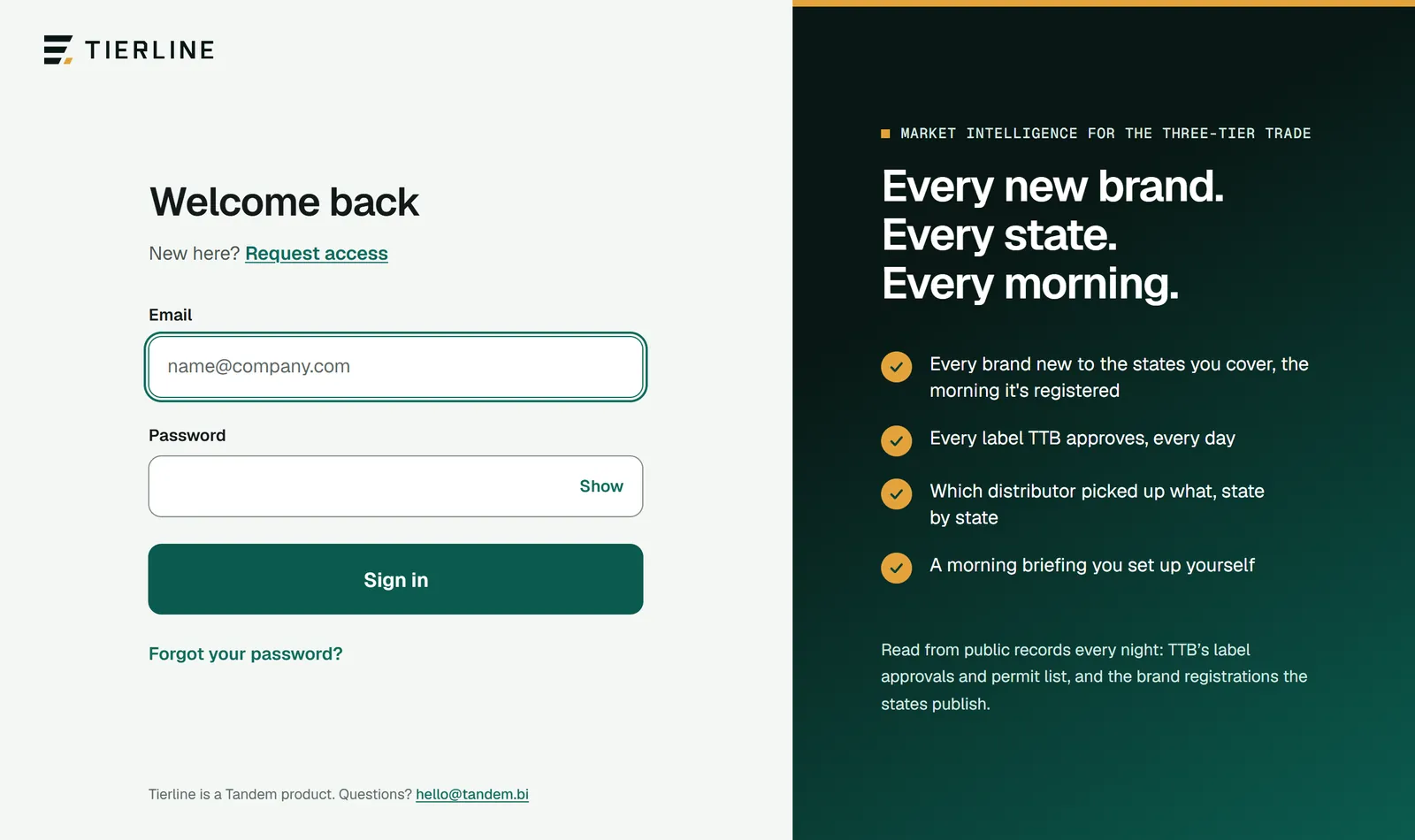
How to read it
- 1.
Your email.
- 2.
Your password. Show lets you check what you typed.
- 3.
Forgot your password? emails you a link to choose a new one.
- 4.
New here? Request access opens a short form to ask for an account, since sign-ups are closed for now. We reply by email.
What to do here
Join from an invitation
When your company’s owner or admin invites you, Tierline emails you. Its button lets you choose a password and takes you to the welcome steps. The button works for 24 hours; if it’s too late, ask them to press Send again.
Reset your password
Press Forgot your password?, enter your email and follow the link in the message. A link works once; an old one brings you back here to ask for another.
Good to know
- Tierline keeps you signed in on that browser while you use it; after 30 days without a visit you sign in again.
- Change your name or password any time in Settings, under Your account.
The welcome steps
The first time you sign in, Tierline asks a few questions, one a screen, so the overview and your briefing start with what matters to you. Nothing is saved until you finish, so Back is always safe.
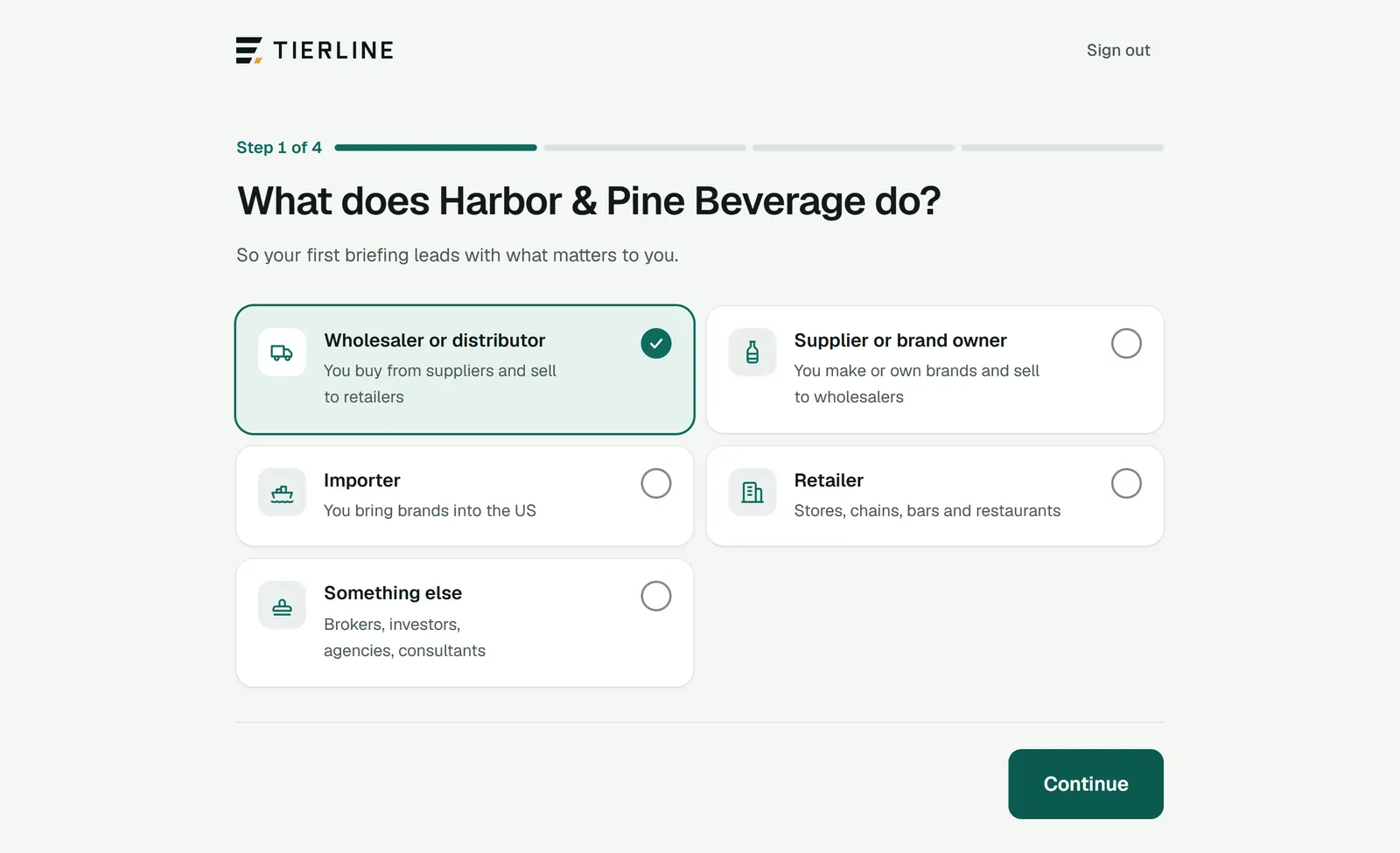
How to read it
- 1.
Where you are, and how many steps are left.
- 2.
One big choice a screen. Pick the one closest to what your company does.
- 3.
Continue goes to the next question. The last step’s button is Finish and open Tierline.
What to do here
If you’re setting up your company
An owner or admin answers four questions: what the company does, which states it covers, what it sells (spirits, wine, beer) and whether they’d like the morning briefing.
If you’ve joined a team
Your team has already chosen its states and categories, so there are two: your name, and your briefing.
Good to know
- What your company does sets the briefing’s first sections. A wholesaler’s starts with brands new to its states; a supplier’s with brand moves and what the big supplier groups filed. You can change every one.
Choose your states
Your states are your territory. The overview and Brand moves look at them, your briefing follows them, and Registrations opens on the first of them we read. Your home states, one or more of them, come first: Brand moves’ chart and the overview’s open on them.
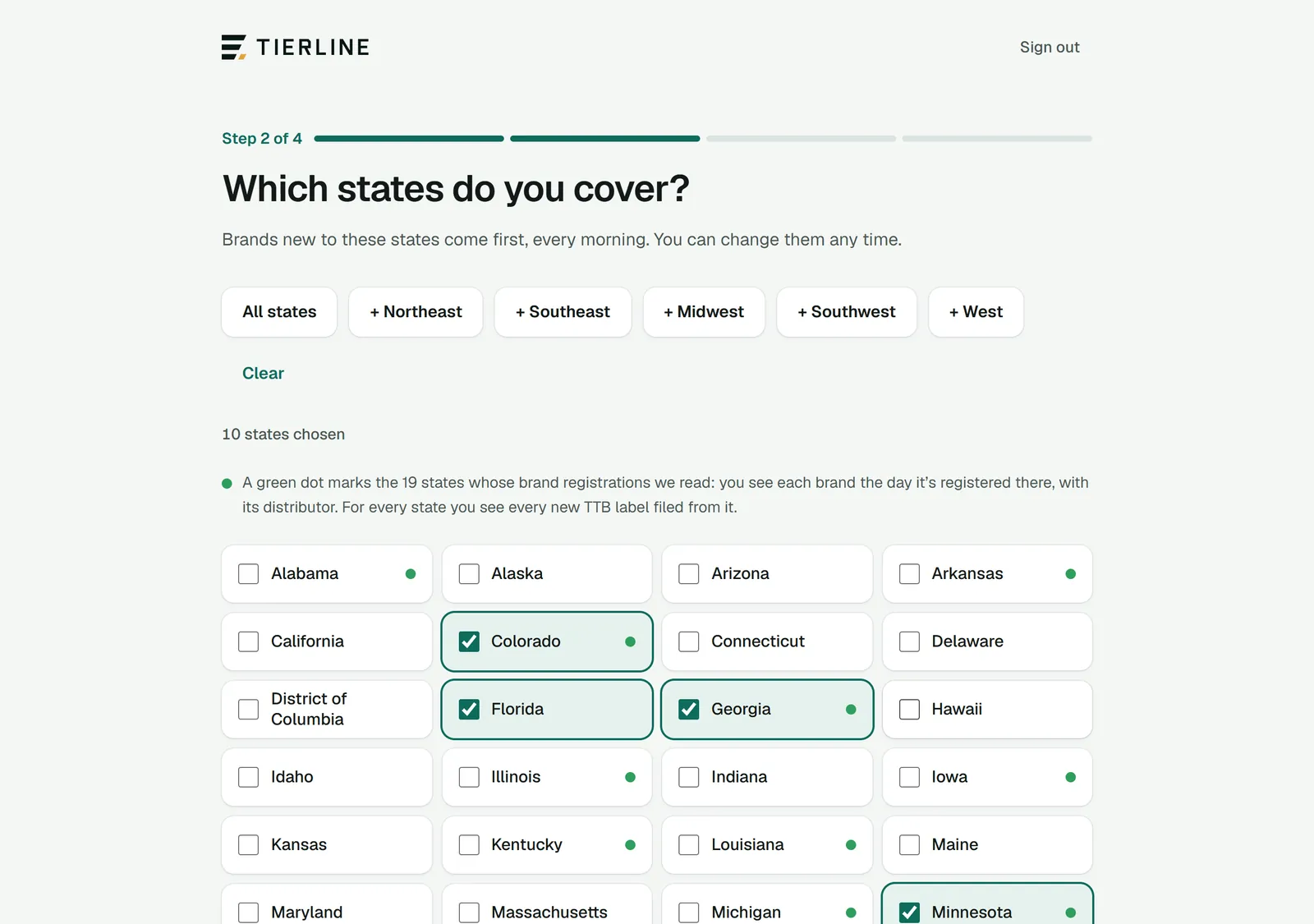
How to read it
- 1.
Quick picks: every state at once, or a whole region. Clear starts again.
- 2.
How many states you’ve chosen.
- 3.
A green dot marks the states whose brand registrations Tierline reads. In those you see each brand as it’s registered, with its distributor where the state names one.
- 4.
A big checkbox for each state: tap to add it or take it away.
What to do here
Change your states later
An owner or admin changes the company’s states in Settings, under Company and states. The overview, Brand moves and everyone’s briefing follow.
Choose your home states
Right after your states, the welcome steps ask which are home: where you’re based or sell most. Choose one or more, or none for now; an owner or admin changes them in Settings, under Company and states. Lists of your states start with them, marked with a house.
Follow fewer states yourself
Your own briefing can cover just the states you choose. See your own states.
Good to know
- Every state counts, dot or not: for every state you see the new TTB labels filed from it. Where a state doesn’t publish registrations we can read, the overview says so.