Labels
Before a product is sold in the US, TTB approves its label, so new labels are the first sign of new brands and products, from every state. The overview sums them up; Labels has a day’s every label, as a list and as a treemap of their pictures.
Every label
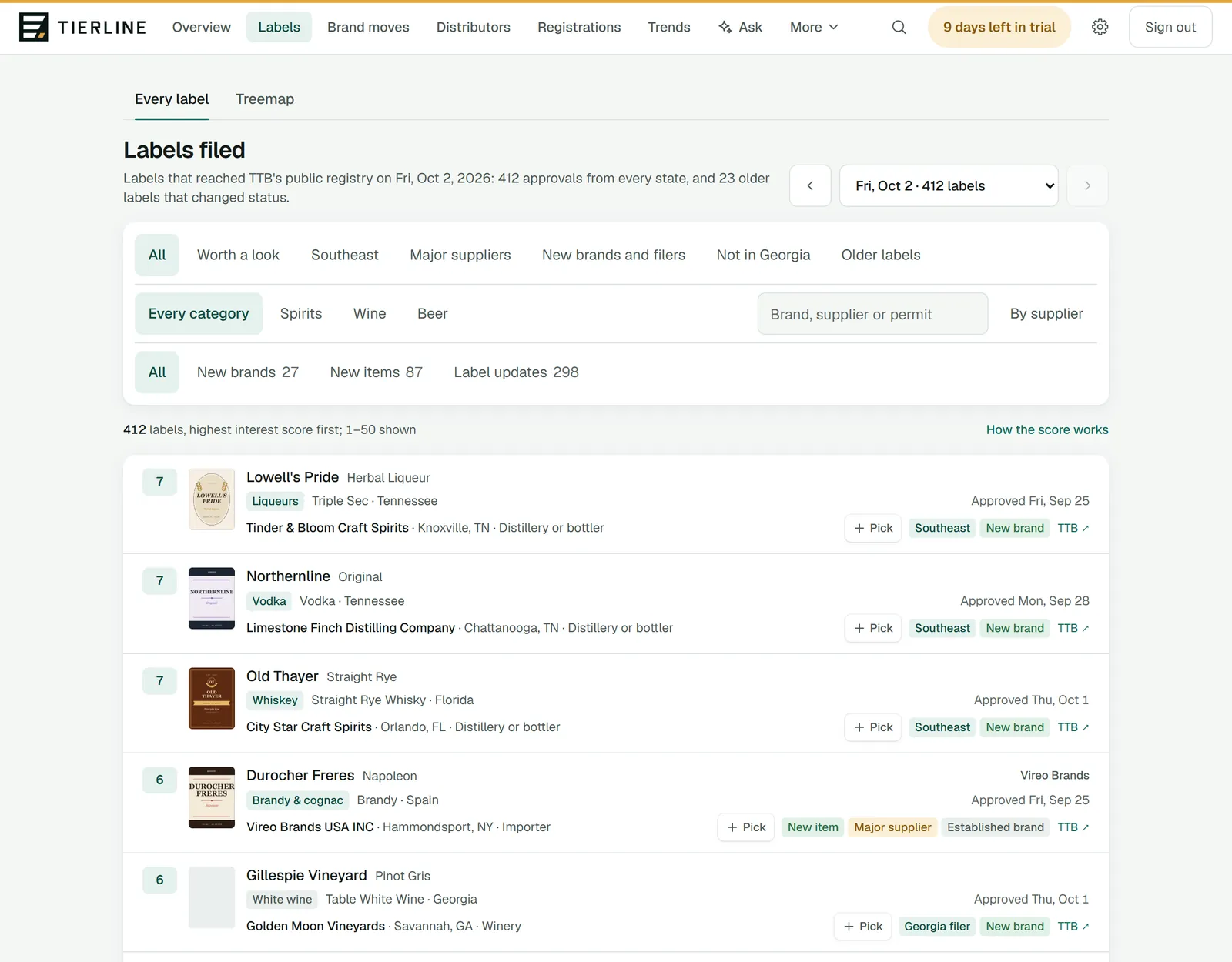
How to read it
- 1.
Labels’ two views: Every label and Treemap.
- 2.
The day. The arrows step back and forward; the menu lists each day with its count.
- 3.
Ways to look at the day: all of it, the labels worth a look, the major suppliers’, new brands and filers, and more.
- 4.
Narrow the day to a brand, a supplier or a permit number.
- 5.
By supplier gathers the labels under each filer.
- 6.
What’s new about each label: New brands, New items or Label updates, with how many.
- 7.
How the score works shows what puts a label higher in the list.
What to do here
See what a competitor filed
Type its name or permit number in the box, or press By supplier and open its row.
See one kind of product
Choose a category, then a product type (tequila, red wine, beer and so on) in the row that appears under it.
Good to know
- A day can bring two thousand labels, so the list shows 50 at a time: Next and Previous, at its foot, turn the pages.
- TTB posts approvals a few days late and in batches, so a day between batches can look low.
The treemap
The treemap shows the labels as pictures, every label the same size, so a block’s area is its share of them.
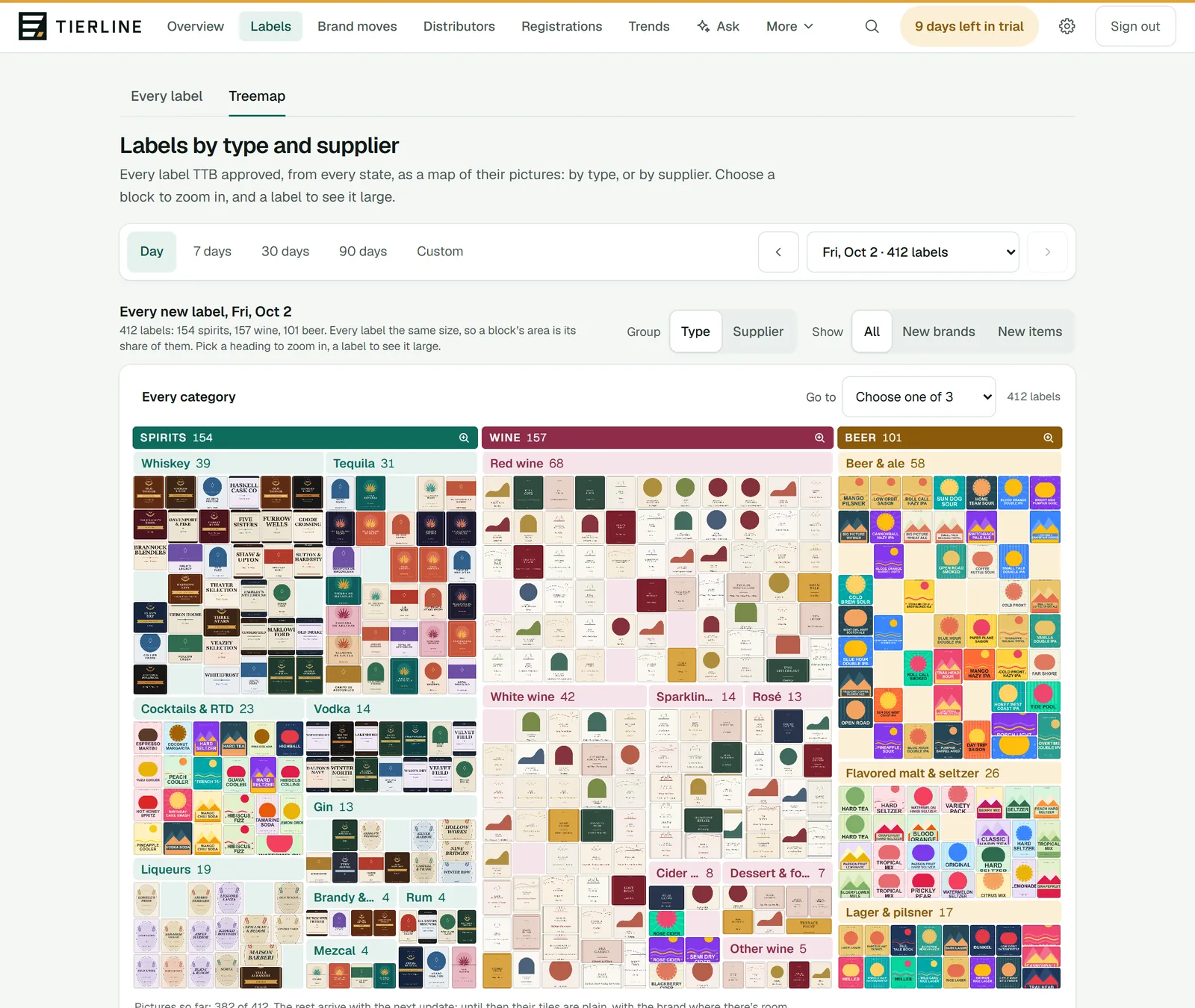
How to read it
- 1.
The period: a day, the last 7, 30 or 90 days, or dates of your own, up to 92 days.
- 2.
Group by type (a category, then its product types) or by supplier (the big supplier groups and their brands, then every other filer).
- 3.
Show every label, only new brands or only new items.
- 4.
Go to jumps to a block too small to read.
- 5.
A block’s heading zooms in, and the trail above it zooms back out. A label opens large, with what it is and who filed it.
What to do here
See a launch at a glance
Group by supplier, zoom into a group, and open a label to see it large. Pick keeps it to send on.
Good to know
- A day holds every label. Over a longer period the treemap holds the 1,000 highest-scoring labels and up to 750 more from the supplier groups, and says so.