The morning briefing
The briefing is your own email: only you get yours, and everyone on your team sets up their own. It’s off until you say yes, in the welcome steps or in Settings.
Set it up
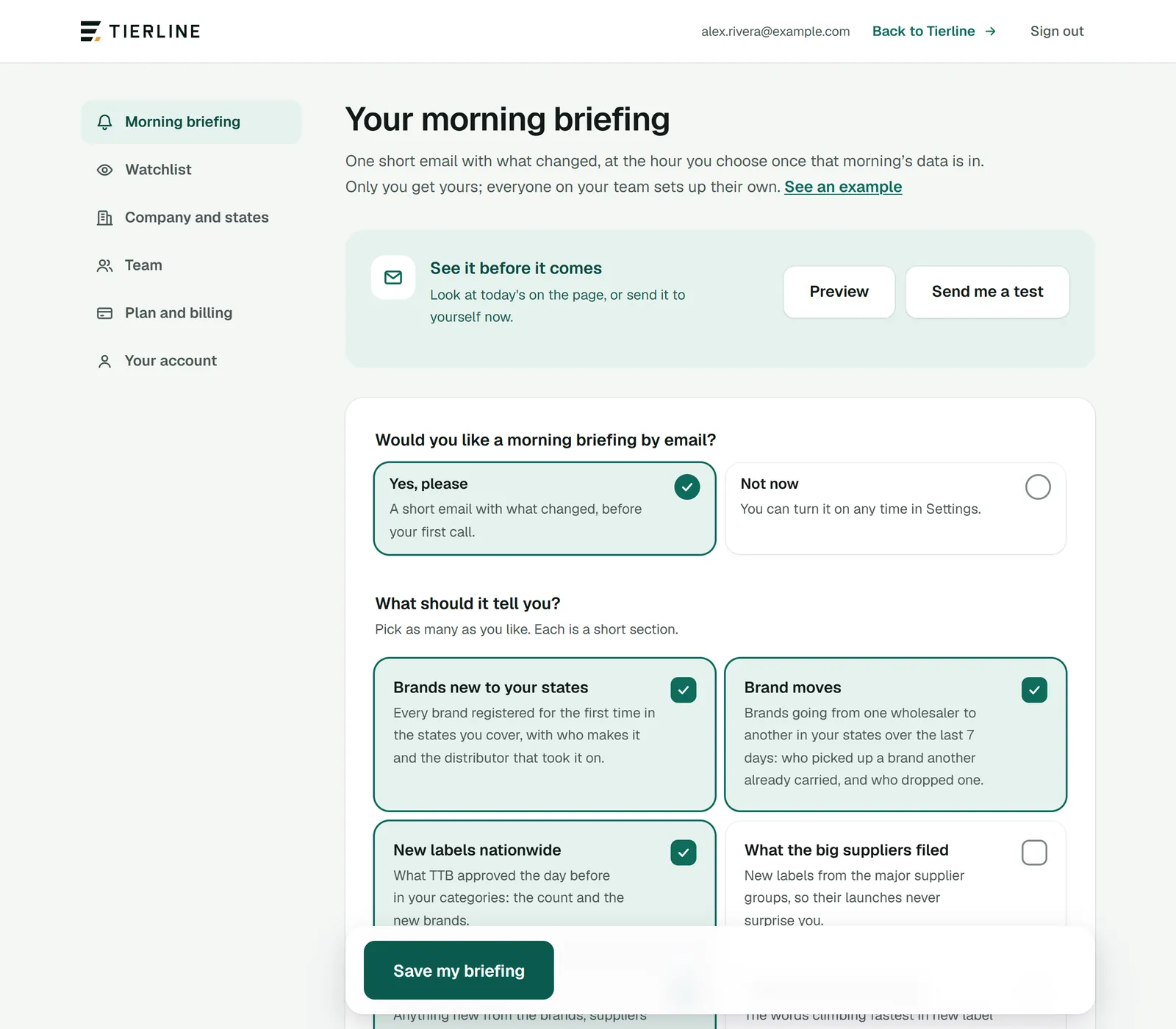
How to read it
- 1.
Settings: your briefing, your watchlist, company and states, team, plan and billing, and your account.
- 2.
Preview shows the briefing as it would go out now; Send me a test emails it to you now.
- 3.
Yes, please turns it on; Not now turns it off.
- 4.
The sections it carries: choose as many as you like.
What to do here
Choose what it tells you
Each section is a short part of the email: brands new to your states, brand moves, new labels nationwide, what the big suppliers filed, your watchlist, and rising flavors and styles (on Mondays).
Choose how often
Every weekday (Monday to Friday, when TTB and the states publish), Every day, or Once a week (Monday mornings, with the whole week before).
Save it
Press Save my briefing at the foot of the page. It says when it’s saved.
When it arrives
Tierline reads TTB and the states every morning. Your briefing comes at your hour, but never before that morning’s data is in, so it’s always fresh.
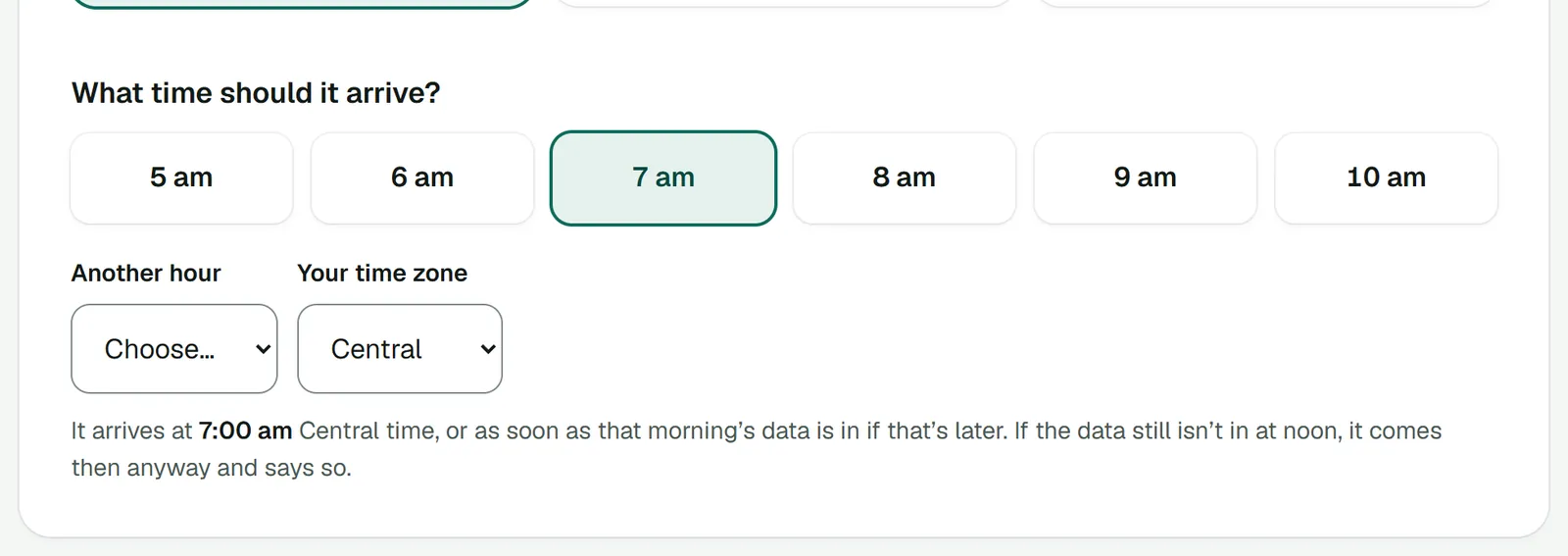
How to read it
- 1.
The hour where you are: 5 to 10 am, a button each.
- 2.
Any other hour, and your time zone.
- 3.
When it will come, in words.
Good to know
- The morning update starts at 6:30 am Eastern and is usually in by mid-morning Eastern time.
- If your hour comes first, the briefing waits and goes as soon as the data lands, the same day.
- If the data still isn’t in by noon where you are (or your own hour, if that’s later), it comes then anyway, with a line saying the morning update hadn’t finished.
- You never get two in a day. Each briefing covers what arrived since the one before.
Your own states and categories
Under the hour, Which states? offers My company’s states, or Just the ones I choose for a rep who covers part of the territory. Which categories? works the same way.
The email
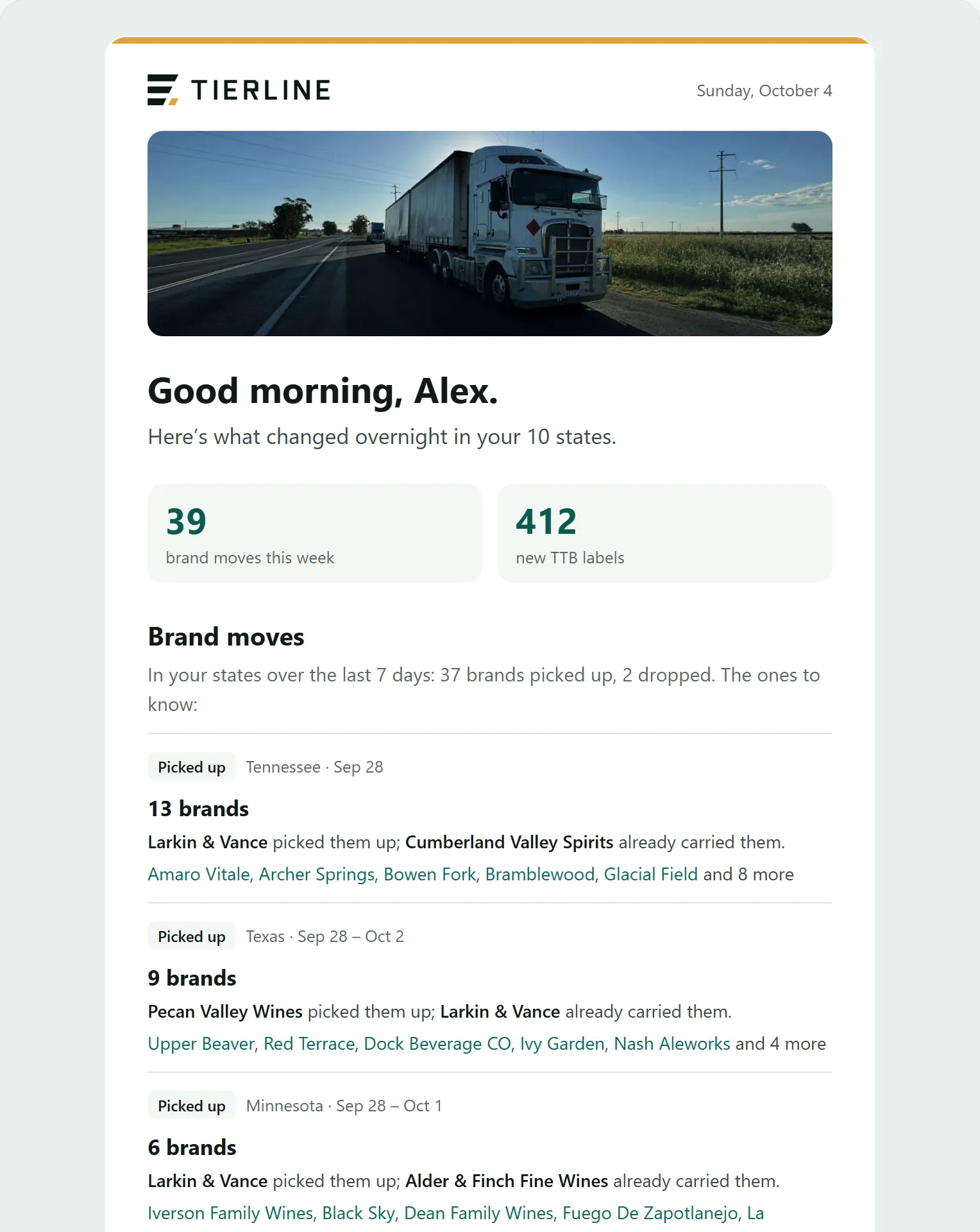
A short email that reads well on a phone, drawn by the same code as the preview in Settings.
Good to know
- Every briefing ends with a link to change your settings and a one-click link to stop it.